C# Beginner Tutorial
Me and myself
_____________ First of all, I want to introduce myself shortly. My name is George, I'm 23 years old and I learned to code in school. I was 15 years old as I started to code. Now I'm working for hardly 2 years as C# Programmer at a small company. I'm by far not a pro but I think I'm able to teach the basics 😉Why I'm doing this
_____________ In my opinion, coding will be very important in the future. Everbody should understand the basics because it will be everywhere in everyone's life. Coding seems very complex in the beginning but If you have understood the basics one time you can do a lot with it. Even in different coding languages. So be patient and don't give up! 😃Why C#
_____________ The best thing about C# or any other language in the .Net Framework is that you can use Visual Studio (VS) as IDE (integrated development environment). VS is a very powerful tool and if you ever used Eclipse or Netbeans for Java you know how good VS is! (sorry I'm a little C# fanboy :-D) Secondly, I'm a 100% Windows User and with C# it's very easy to create desktop software with WinForms/WPF.Preparations
_____________ The first thing you should do is to download Visual Studio. It's a big and powerful tool so the installation needs some time. Hit the Link! [Visual Studio 2017](https://www.visualstudio.com/de/thank-you-downloading-visual-studio/?sku=Community&rel=15) The installation is straightforward to the workloads screen: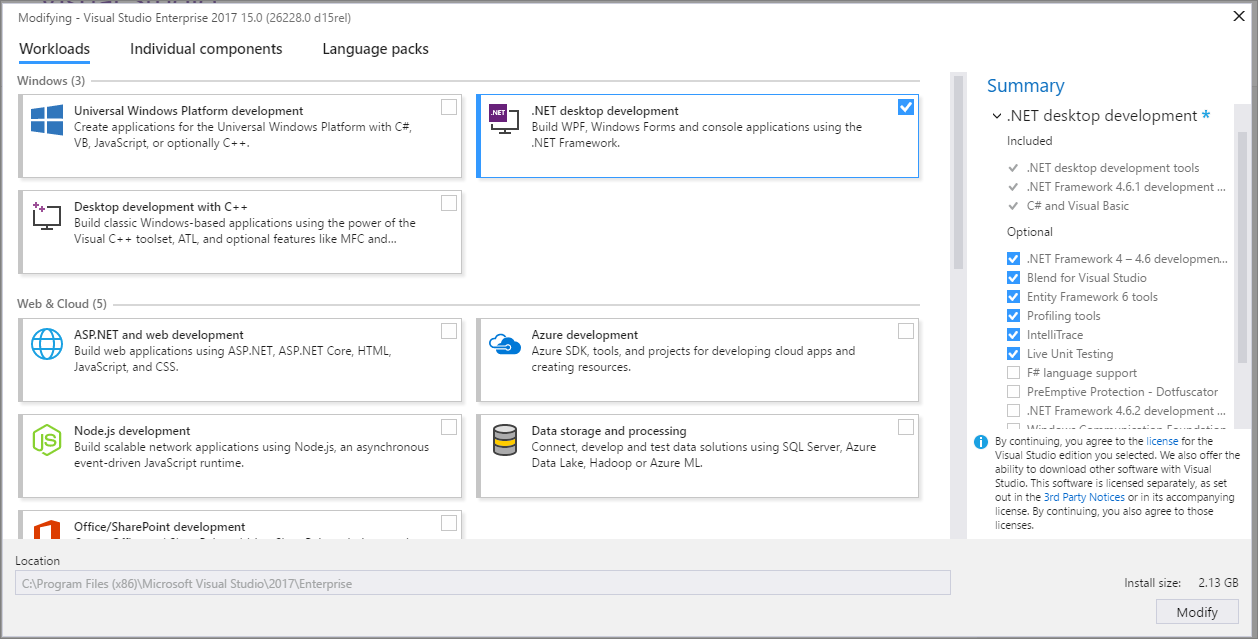 *https://docs.microsoft.com/en-us/visualstudio/install/modify-visual-studio*
Your first Project
_____________ How I hated the theory coding hours in school! So let's stop talking and start coding! Open up VS2017 and hit File -> New -> Project. Now you will see this screen:

and use the shortcut Ctrl + F5 to build and run the program. If everything is working in the correct way a console window will pop up:


Next Post
_____________ I will keep this lessons short because of coding needs time. Trial and error method is a good start - you will learn a lot. In the next post, I will split the code from this post up. What it means and do in the background. Yeah, I know - theory - but I will keep it simple and short 😉Have a nice day
Geggi632
